Nothing To Declare Controls
Move through weighing, scanning, interviews, and searches without fighting the desk.
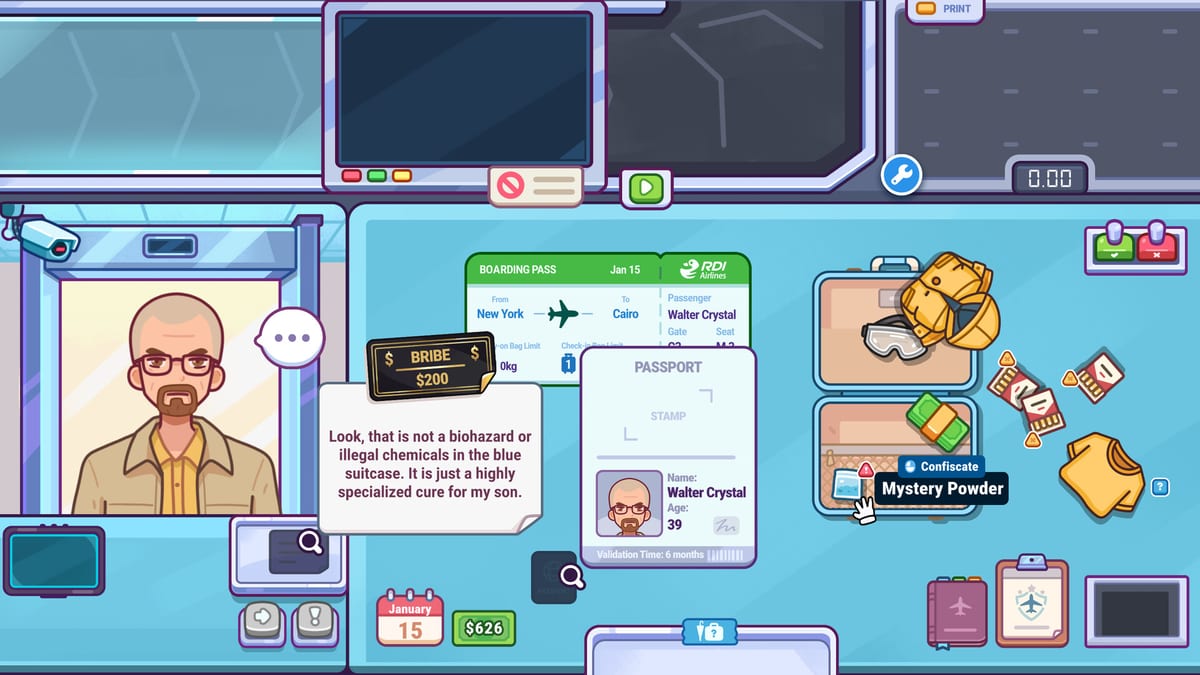
Nothing To Declare is built as an approachable, mouse-friendly airport security sim. You point, click, drag, and inspect more than you memorize complex hotkey webs. This controls guide explains how to think about desk interaction across every station so input friction never disguises itself as a judgment mistake.
Control philosophy
The game wants cozy clarity: serve a passenger, operate a tool, read feedback, decide. Steam feature tags highlight mouse-only options, custom volume controls, adjustable difficulty, and save-anytime comfort. Use those options. Accessibility is part of playing well.
If a shift feels unfair, ask whether you misread a bag—or whether you misclicked a dense UI under time pressure. Fix the second problem here; fix the first in the Guides hub.
Station-by-station interaction tips
Greeting and documents
Click deliberately. Document checks and rule prompts are easy to skim when the next traveler is bouncing. Slow pointer, full read.
Bag weighing
Treat the scale as a primary interaction, not a flavor animation. Confirm the reading before you mentally move on. See Bag Weighing.
X-ray scanning
Hover and inspect with patience. Noisy layered visuals punish flick-glances. Make four passes—silhouette, density, connections, story match—from the x-ray guide.
Interviews
Dialogue is a precision click surface. Do not rage-click the harshest line. Choose the hypothesis-testing option from Passenger Interviews.
Luggage search
Unzip and poke with small movements. The mini-game rewards careful examination of odd items and electronics. Guide: Luggage Search.
Comfort settings that improve accuracy
- Lower audio chaos if cute sound design masks feedback you need.
- Pick a difficulty that teaches; ego settings create misclick spirals.
- Save when you learn something important—Steam Cloud support makes that habit safe.
- Use mouse-only comfort if controllers fight the desk fantasy.
Throughput without panic clicking
Speed comes from fewer corrections, not harder presses. Officers who slam through UI create false searches and missed scan tells. Pair this page with the Shift Checklist so every click has a purpose.
If upgrades are tempting because the desk “feels slow,” verify whether the bottleneck is input or judgment. Then consult Workstation Upgrades and Earning Money.
Platform notes
Nothing To Declare launches for Windows, macOS, and Linux. Keep OS-level pointer precision sensible, especially on high-DPI displays where tiny inspect targets can feel fidgety. Track Steam Deck notes via community discussion as compatibility reports evolve—start from Official Links.
Related learning path
New players: How to Play → First Shift Tips → this controls page → live drill with the checklist. Item recognition lives on Contraband and Passengers. Expectations and vibe sit in the review. Patch-driven UI changes will land on Updates.
Control the pointer. Then the checkpoint feels as cozy as the art promises.
Desk ergonomics for long cozy sessions
Because Nothing To Declare invites “one more passenger” energy, small ergonomic choices matter. Keep your pointer sensitivity stable. Avoid huge mouse acceleration spikes that overshoot inspect targets during luggage searches. On laptop trackpads, take the extra half-second—trackpads punish rage flicks on noisy x-ray UIs.
If you play on Linux via Proton or native builds as Steam lists them, verify that pointer capture and fullscreen behavior feel consistent before you blame a miss on judgment. Same idea for macOS retina scaling: if UI chrome looks tiny, adjust OS display scaling before you buy upgrades to “fix” a problem that is actually visibility.
Common input myths
Myth: Faster clicking means better officer energy.
Truth: Faster clicking usually means skipped reads.
Myth: If a control feels awkward, the upgrade tree will solve it.
Truth: Fix comfort settings and pacing first; then spend via Workstation Upgrades.
Myth: Mouse-only means there is nothing to learn.
Truth: The skill is sequencing tools cleanly under charming distractions—see How to Play and the Shift Checklist.
When in doubt, slow the pointer and speed up recognition. Recognition comes from Items study; pointer calm comes from this page.
Frequently Asked Questions
Quick answers to the most common questions.
Is Nothing To Declare mouse-friendly?
Yes. It is designed around point-and-click desk interactions and lists mouse-only options among its features.
Do I need complex hotkeys?
You primarily interact through clicking and inspecting tools at the checkpoint rather than mastering a huge hotkey map.
What settings help most?
Adjustable difficulty, comfortable audio levels, and saving when you learn a new pattern all protect accuracy.
Why do I misclick during searches?
Usually rushing. Slow down poke-around movements and justify the search before you open the bag.
Which platforms are supported?
Windows, macOS, and Linux. Check Steam for the latest compatibility notes on your device.